CRM Page
The CRM System at the Back-end are similar to the Front-end CRM System.
Please refer Section 1.6. to learn how to create a new customer
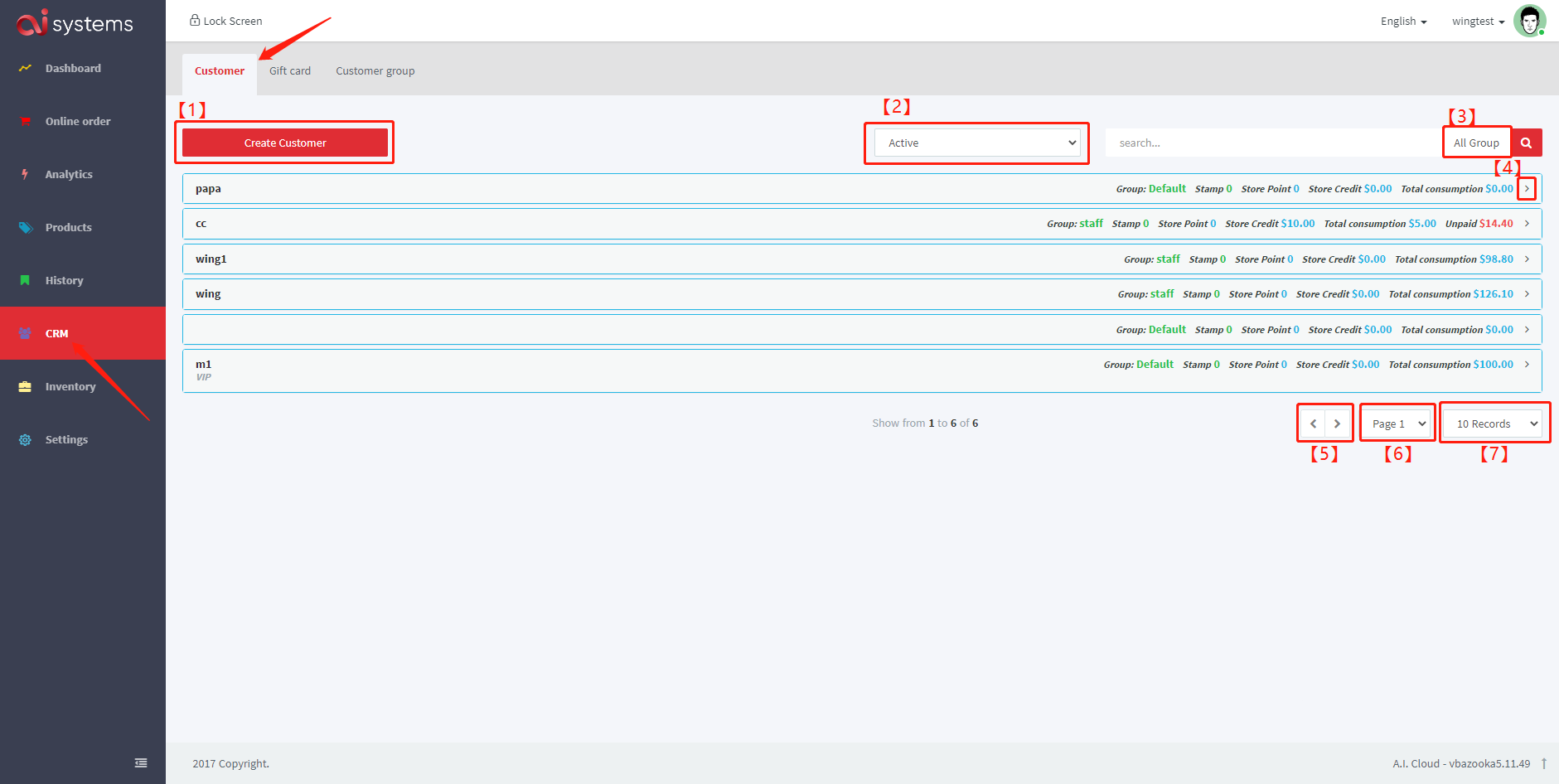
1. Create New Customers
2. Type of Customer(All, Active, In active)
3. Search Bar (Click "All Group" to search different group of customers)
4. Customer Detail
5. Next Page Button
6. Select Page
7. Select Records Showing at Current Page
Detail of the customers
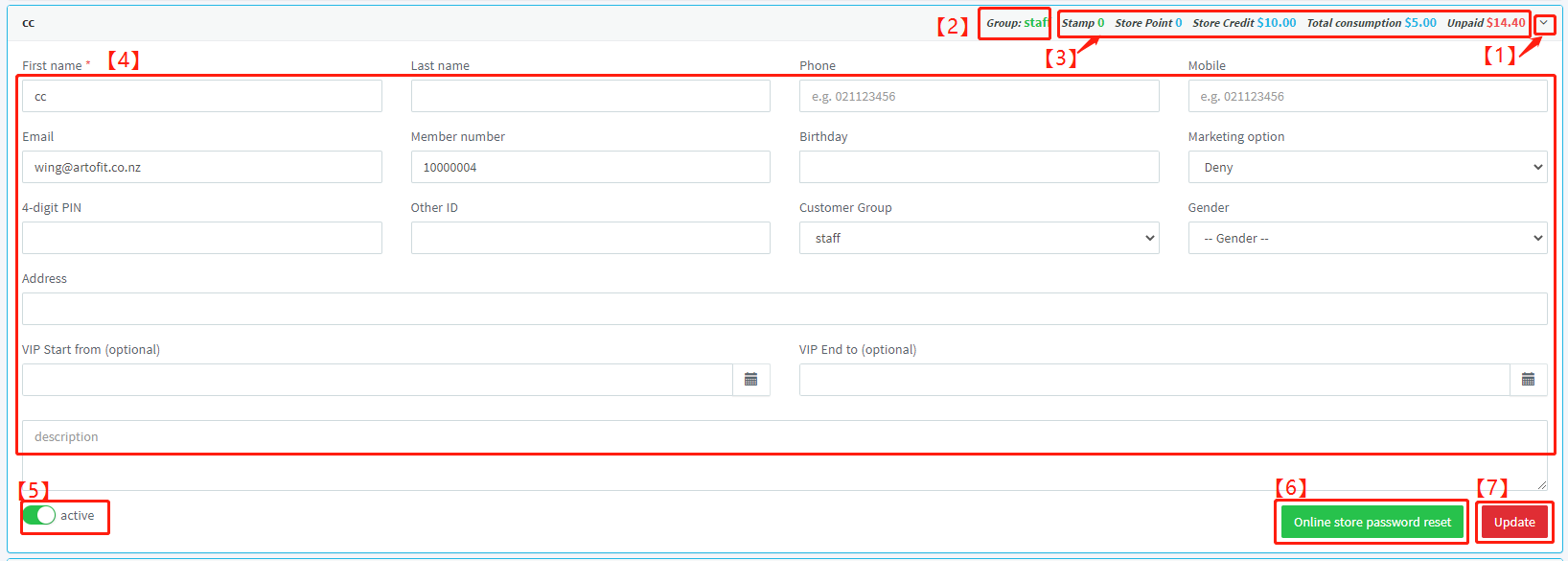
1. Click to get more customer's details
2. Customer belongs to which group
3. Customer's records
4. Update customer's detail(For example: First name, Last name, Phone, Mobile...)
5. Active and Inactive(Not Showing at the front CRM system anymore) customer
6. Reset the online store password(will send a reset password email to the customer)
7. Click "Update" to save all changes
Customer's Detail

Stamp: Stamp record of the customer currently earn
Store Credit: The record of the store point that customers can use
Total Consumptions: The record of customer spend in total
Unpaid: The record of all unpaid amount
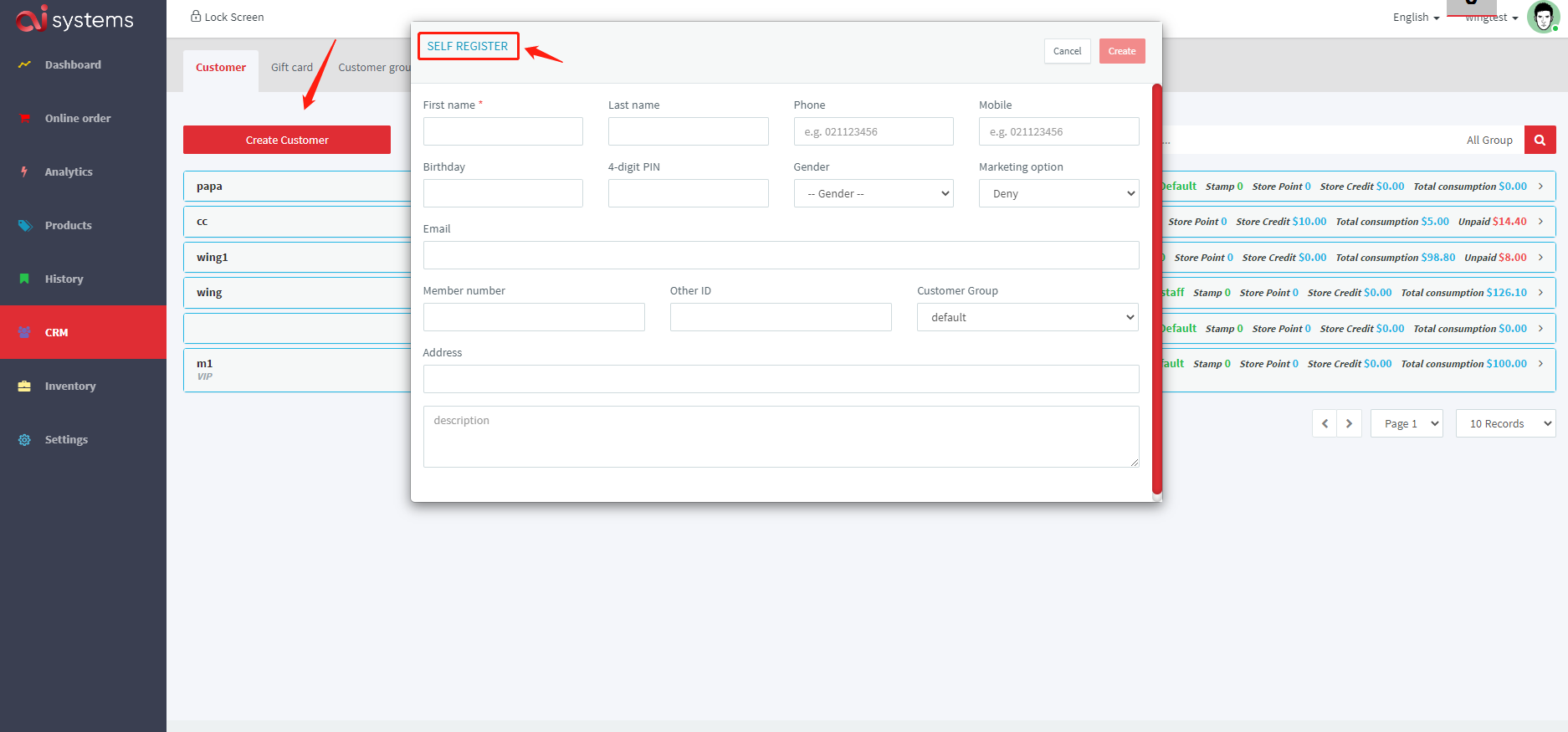
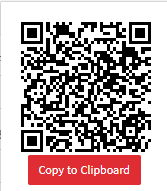
Self Register QR Code
Go to "Create Customer" and Click "Self Register"
This QR code can used for customer registration by themselves
Gift Card
New factures will coming soon...
Create Customer Group
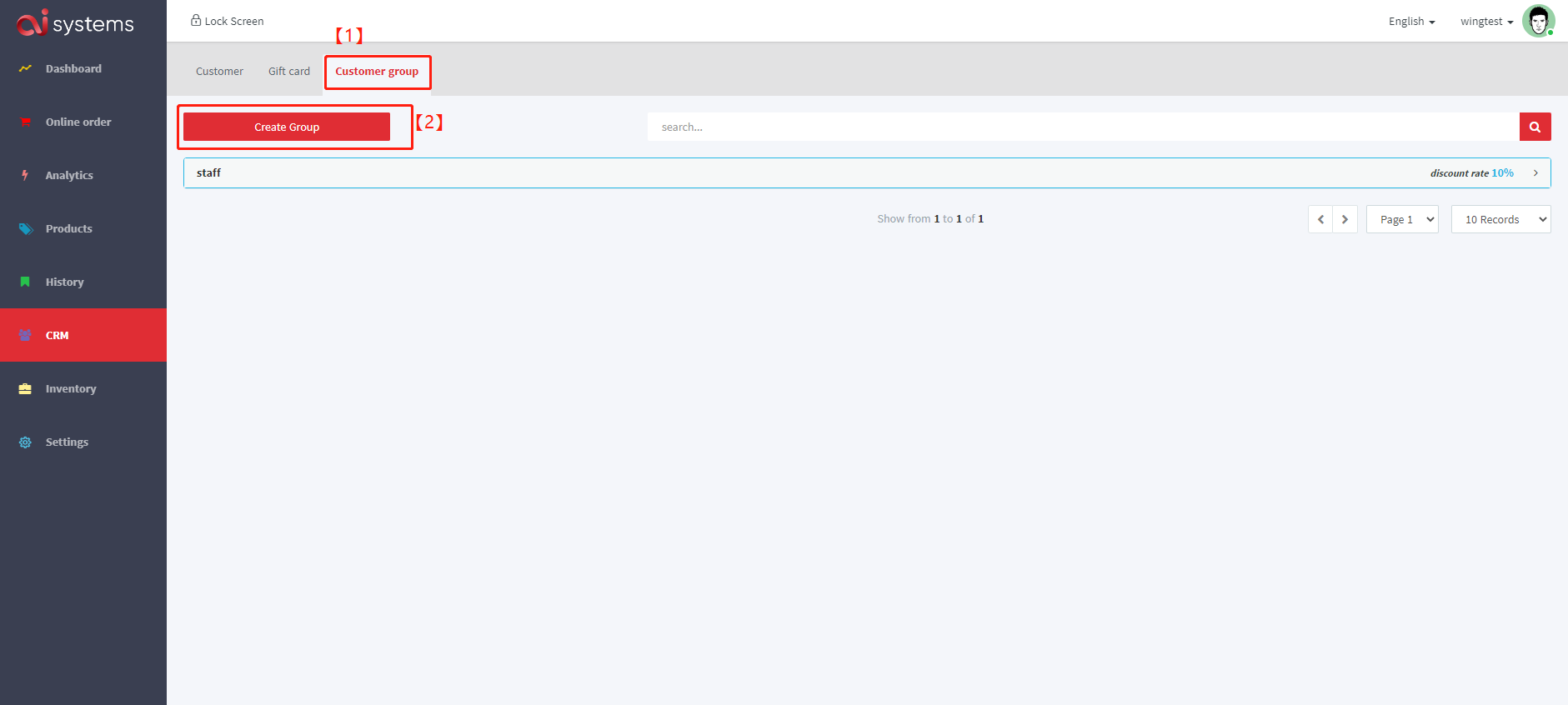
1. Go to Customer Group
2 Click "Create Group"
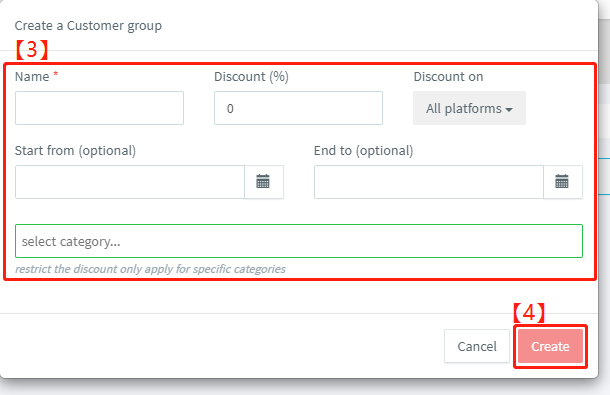
3. Enter the details of this new group(For example: Group Name, Discount, Discount on which platform(All/POS/Kiosk/Online), Group Start & End Date, Select the Category)
**Select the Category: If noting selected, system will not apply any discount to any the product
4. Click "Create" to create a new group